

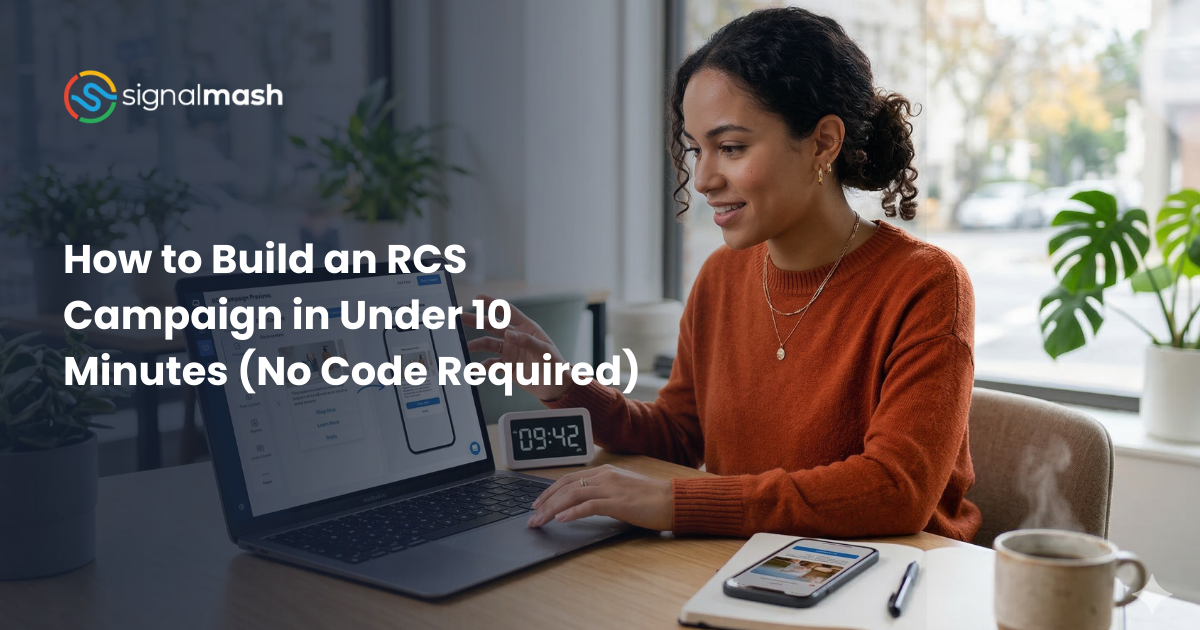
Your team has been reading about RCS for months. You have seen the stats. 3 to 7 times higher click-through rates than SMS. Verified sender badges. Interactive carousels. Rich media cards. It sounds great on paper.
Then you ask your developer how long it would take to build an RCS campaign. The answer comes back: "A few weeks to learn the API, build the message templates, handle the fallback logic, and test across devices." A few weeks turns into next quarter's roadmap, and RCS stays on the "nice to have" list while you keep sending plain text SMS.
This is the implementation gap that keeps most businesses from actually using RCS. Getting API access is easy. Every major CPaaS provider offers RCS APIs now. But going from API access to a live campaign requires development work that most marketing teams cannot do themselves and most engineering teams cannot prioritize.
That is exactly the problem SimplyRCS was built to solve. It is a visual campaign builder that lets your marketing team design, preview, and launch RCS campaigns without writing a single line of code. Here is how it works, step by step.
Why Most Businesses Stall After Getting RCS Access
The typical path to RCS goes something like this. You sign up with a CPaaS provider. You apply for RCS business messaging through the carrier approval process. After 8 to 16 weeks, you get approved. You receive API credentials and a link to the documentation.
And then you stare at the documentation.
RCS messages are not plain text. A rich card requires defining a media URL, a title, a description, and up to four suggested actions with their corresponding payloads. A carousel requires multiple cards with consistent formatting. Fallback logic requires detecting whether each recipient supports RCS and routing to SMS when they do not. Testing requires sending messages to real devices because RCS rendering varies between manufacturers and carriers.
For a developer, this is manageable but time-consuming. For a marketing manager who runs your SMS campaigns through a dashboard, it is a dead end.
Every competitor in the CPaaS space has this same gap. They position RCS as "easy" and "zero code changes from SMS," but their actual product is an API and documentation. The campaign design, template building, testing, and launch are all left to you.
What a Visual RCS Campaign Builder Changes
.png)
A visual campaign builder puts the campaign design process in the hands of the person who actually knows what the message should say: your marketer.
Instead of defining JSON payloads and media URLs in code, you select a message type, drag and drop content elements, upload images, write copy, and preview the result on a simulated device screen. Instead of writing fallback logic, you set a fallback SMS message and the platform handles the routing. Instead of testing on physical devices, you preview across device types in the builder.
The output is the same: a properly formatted RCS message that gets sent through the carrier network to your customers. The difference is that it took 10 minutes instead of 10 days, and it did not require a single engineering sprint.
Step-by-Step: Building Your First RCS Campaign
Step 1: Choose Your Message Type
RCS supports several message formats. For your first campaign, start with one of these two:
- Rich Card: A single card with an image, title, description, and up to four action buttons. Best for appointment confirmations, single product promotions, or account alerts.
- Carousel: Multiple cards that the recipient swipes through. Best for product recommendations, menu showcases, or multi-option promotions.
In SimplyRCS, you select the message type from a dropdown. The builder interface updates to show the appropriate design fields for your selection.
Step 2: Add Your Visual Content
Upload your product image, promotional graphic, or brand visual. RCS supports high-resolution images, so you do not need to compress your assets the way MMS requires. The builder shows you a preview of how the image will appear on different device types so you can verify the aspect ratio and cropping before sending.
For carousels, upload an image for each card. Consistency matters here. Use images with the same dimensions and style across all cards so the carousel looks polished when customers swipe through it.
Step 3: Write Your Copy
Each rich card has a title field (typically 25 to 50 characters for best display) and a description field (up to 2,000 characters, though shorter performs better). Write the way you would write a product card on your website: clear, specific, and focused on what the customer cares about.
Bad example: "Check out our latest offer! Great deals await!"
Good example: "Merino Wool Pullover. $89. Free shipping over $100. Available in 4 colors."
The second version gives the customer enough information to make a decision. The first version gives them a reason to ignore the message.
Step 4: Configure Action Buttons
Action buttons are where RCS earns its conversion advantage. Each button can trigger one of several actions:
- Open a URL, taking the customer to a product page, checkout flow, or scheduling tool.
- Dial a phone number, connecting them directly to your sales or support team.
- Share a location, useful for store directions or appointment addresses.
- Send a postback reply, which triggers an automated response or workflow in your system.
For an abandoned cart campaign, your buttons might be "Buy Now" (opens checkout URL) and "Browse Similar" (opens a collection page). For an appointment reminder, they might be "Confirm" (postback) and "Reschedule" (opens scheduler URL).
Step 5: Set Your SMS Fallback
Not every customer has an RCS-capable device. Your campaign needs a fallback message for those recipients. In the builder, you write a standard SMS version of your message that delivers to anyone who cannot receive RCS.
The fallback should cover the same core information as your RCS message, just without the visual elements. Include a shortened URL so the customer can still take action, even without the interactive buttons.
The platform handles the detection and routing automatically. You do not need to segment your audience by device capability or manage separate campaigns for RCS and SMS recipients.
Step 6: Preview and Test
Before sending to your full audience, preview the message on simulated device screens to check formatting, image display, and button layout. Then send a test message to your own device and a few team members' devices to verify the real-world experience.
Check the image rendering, button functionality, and fallback behavior. Tap every button to make sure the URLs and actions work correctly. This 5-minute testing step prevents embarrassing issues in a live campaign.
Step 7: Launch
Select your audience, schedule the send time (or send immediately), and launch. The platform delivers RCS messages to supported devices and SMS fallback to everyone else. You monitor delivery, click-through rates, and engagement metrics in real time through the campaign dashboard.
What to Measure After Your First Campaign
Your first RCS campaign gives you baseline data to compare against your existing SMS metrics. Track these numbers:
- Delivery rate: What percentage of your messages were delivered as RCS versus falling back to SMS? This tells you the current RCS reach within your audience and helps you project how the channel will grow as more devices support RCS.
- Click-through rate: How many recipients tapped an action button? Compare this to the click-through rate on links in your equivalent SMS campaigns. Industry benchmarks show 3 to 7 times higher CTR for RCS, but your specific numbers depend on your audience, industry, and message design.
- Conversion rate: Of those who clicked, how many completed the desired action? Purchase, appointment booking, form submission, or whatever your campaign goal was.
- Fallback performance: How did the SMS fallback version perform compared to the RCS version? This shows you the incremental value of rich messaging for recipients who received the RCS version.
Getting Started with SimplyRCS by Signalmash
SimplyRCS is designed for marketing teams that want to run rich messaging campaigns without depending on developers. The visual builder, device preview, SMS fallback configuration, and campaign analytics are all in one interface.
If you have not started the RCS carrier approval process yet, now is the time. Approval takes 8 to 16 weeks, and you can design your campaigns in the builder while you wait. That way, you are ready to launch the day your approval comes through.
Signalmash handles the carrier approval process alongside you, reviews your campaign designs before launch, and provides ongoing support through a dedicated Slack channel. The goal is to get your first RCS campaign live as quickly and smoothly as possible, so you can start collecting the data that justifies expanding the channel across your messaging program.
The builder described above is the SimplyRCS RCS bot builder; the page shows the canvas and what a finished flow looks like.